How to Install LM Studio and Start Your Local LLM (No Cloud, No Fees, No Cap)
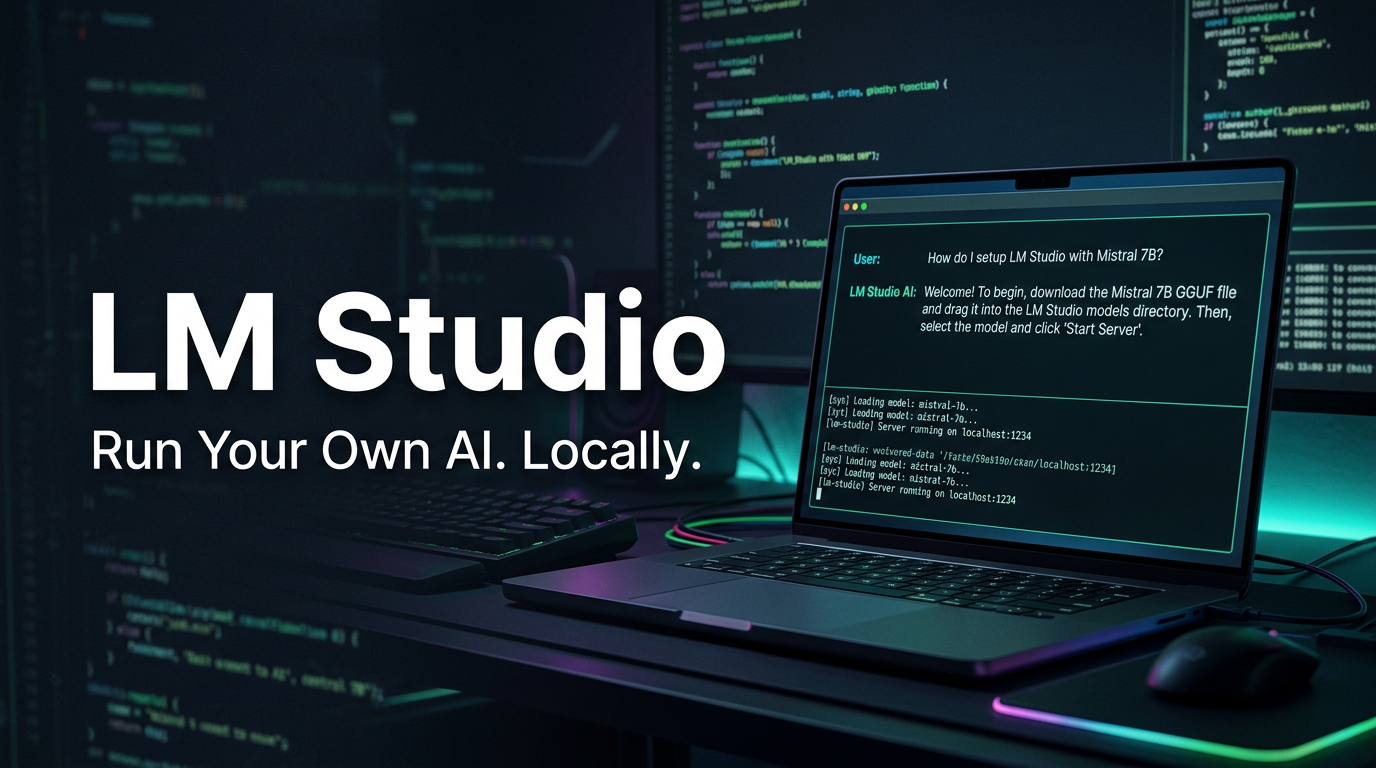
POV: you're tired of your prompts getting shipped off to some server farm in the middle of nowhere, and you just want a smart AI that lives on your machine. That's exactly what LM Studio is for.
LM Studio is a free, cross-platform desktop app that lets you download and run large language models locally — no subscription, no API bill, no data leaving your device. Think of it as having your own private Perplexity or ChatGPT, but it runs entirely on your laptop. Zero cloud dependency once setup is done.
Let's get you running.
First, Know Your Hardware
Before you start rage-downloading a 70B model and wonder why your PC sounds like a jet engine — check what you're working with.
Your RAM is the real gatekeeper here:
| Your RAM | Models You Can Realistically Run |
|---|---|
| 8 GB | Small models: Qwen 2.5 3B/4B, Phi-3 Mini, Gemma 2 2B |
| 16 GB | Mid-sized: Llama 3 8B, Mistral 7B, Qwen 2.5 7B |
| 24 GB | Mixtral 8x7B (quantized), Qwen 2.5 14B |
| 32 GB+ | Llama 3.1 70B (quantized), Qwen 2.5 32B |
GPU is optional but makes a huge difference in speed. NVIDIA (CUDA) runs best, Apple Silicon uses Metal natively, and AMD has partial support.
Step 1: Download and Install LM Studio
Head to lmstudio.ai — the site auto-detects your OS and serves the right installer. Current version as of now is 0.4.12.
Windows: Run the .exe installer. No admin privileges needed — it installs to your user directory.
Mac: Open the downloaded file and drag the app to your Applications folder. It just works.
Linux: Download the AppImage, make it executable, and run it.
The whole thing takes under 5 minutes.
Step 2: Download Your First Model
When LM Studio opens, you'll land on a clean interface that's basically a model marketplace. Here's what to do:
- Click the Discover tab (the search icon on the left sidebar)
- Search for a model — try
"Qwen","Gemma", or"Mistral" - Check the model card for size and use case info before committing
- Hit Download and let it pull the files from Hugging Face directly
Most models come in GGUF format — a compressed, optimized file type that makes LLMs actually runnable on consumer hardware. You'll also see labels like Q4_K_M or Q8_0. Lower Q = smaller file, faster speed, slightly less quality. Higher Q = better output, more RAM needed. Q4 or Q5 is the sweet spot for most 16GB setups.
If you're completely new, start with Qwen 2.5 7B (Q4_K_M). It's fast, capable, and won't make your fans scream.
Step 3: Load the Model and Start Chatting
Once the download is done, here's how to actually talk to your AI:
- Go to My Models in the left menu
- Click the settings icon on your model → Load Model
- Head to the Chat tab
- Select your loaded model from the top dropdown
- Start typing
While loading, you can tweak a few settings:
- Temperature — higher = more creative, lower = more predictable
- Context length — how much of the conversation the model "remembers" (higher = more RAM usage)
- System prompt — set the AI's personality and rules before chatting
That's it. Your local AI is now fully operational.
Bonus: Chat with Your Own Documents
This is actually lowkey one of LM Studio's most underrated features. You can upload .pdf, .docx, or .txt files directly into a chat session and ask questions about them.
LM Studio handles the RAG (retrieval-augmented generation) setup automatically — no config needed. It chunks your doc, converts it to embeddings, and pulls relevant sections whenever you ask something. Perfect for summarizing research papers, contracts, or notes without any of it leaving your machine.
Bonus x2: Run It as a Local API Server
For the devs in the room — you can run LM Studio as a local API server that mimics the OpenAI format.
- Go to Settings → Developer → Enable Developer Mode
- Click the Developer icon in the sidebar
- Toggle Status to start the server (default:
http://localhost:1234)
Then connect from Python like this:
from openai import OpenAI

client = OpenAI(base_url="http://localhost:1234/v1", api_key="lm-studio")

response = client.chat.completions.create(
    model="local-model",
    messages=[{"role": "user", "content": "Explain how local LLMs work"}]
)

print(response.choices[0].message.content)
You're literally using your local model like it's the OpenAI API. Genuinely kind of wild.
Is LM Studio Free?
Yes, completely. No subscription. No usage limits. No paywalled features. You only need internet to download models — once they're on your machine, everything runs offline.
Running your own local LLM used to be a whole DevOps project. Now it's basically downloading an app and clicking a button. If you set this up, drop a comment on what model you ended up running — especially curious who's pushing the limits on 8GB RAM.